Monitoring Journey (2) - Prometheus, Loki, Grafana Installation & Connection
From direct installation to connection & visualization of Prometheus, Loki, Grafana A to Z

This post has been translated from Korean to English by Gemini CLI.
This content consists of methods for directly installing monitoring (Loki-Prometheus-Grafana) on internal instances during a project. If there is any incorrect content or a more convenient method, please leave a comment or contact me at joyson5582@gmail.com!
This content continues from the previous content.
Prerequisites
These contents were carried out on EC2 Ubuntu (architecture - 64-bit Arm). Each service was installed on a separate EC2 instance. - Easy to change
- All instances except Grafana are internal instances with no public IP.
- I will not explain in detail how to access each internal instance. (You can move internally by putting Key.pem in Public EC2)
1
2
3
4
5
6
7
8
9
10
11
12
13
14
# Notifies `systemd` that the service creation file has been changed and loads it anew.
sudo systemctl daemon-reload

# Starts the service.
sudo systemctl start prometheus.service

# Sets the service to start automatically.
sudo systemctl enable prometheus.service

# Restarts the service.
sudo systemctl restart prometheus.service

# Checks the service status.
sudo systemctl status prometheus.service
At this time, if you type these commands directly, status may show RUNNING when it is running. If you don’t know this and just move on, you might wander around for a long time (🥲🥲), so wait and try typing status one more time.
That is, if the service changes?
1
2
sudo systemctl daemon-reload
sudo systemctl restart prometheus.service
Service file log again -> Restart
If the configuration file changes?
1
sudo systemctl reload prometheus.service
You can just reload, but it’s better to restart.
Prometheus
To start, go to the instance where Prometheus will be installed.
1
2
3
wget https://github.com/prometheus/prometheus/releases/download/v2.54.1/prometheus-2.54.1.linux-arm64.tar.gz

tar -xvzf prometheus-2.54.1.linux-arm64.tar.gz
Go to releases, install the file that suits you, and decompress it. After decompressing, enter the folder and modify the settings through vi prometheus.yml.
1
2
3
4
5
6
7
8
9
10
11
12
13
14
15
16
17
18
19
20
21
22
global:
  scrape_interval: 15s # Set the scrape interval to every 15 seconds. Default is every 1 minute.
  evaluation_interval: 15s # Evaluate rules every 15 seconds. The default is every 1 minute.
  # scrape_timeout is set to the global default (10s).

scrape_configs:
  - job_name: "prometheus"
    static_configs:
      - targets: ['localhost:9100']

 - job_name: "develop-database"
    static_configs:
      - targets: ['internal_server<IP:Port>']
        labels:
          alias: 'Dev DB'

  - job_name: 'develop-server'
    metrics_path: '/actuator/prometheus'
    static_configs:
      - targets: ['internal_server<IP:Port>']
        labels:
          alias: 'Dev Server'
scrape_configsis where you define various tasks to monitor. (Actually, if you’re not going to show Prometheus on the web, thejob_name:"prometheus"part is not necessary, but I didn’t delete it to check through internal requests.)static_configsis where you fixedly define the metric targets to collect.metrics_path: The path to send metric requests.- We can attach additional labels to the request. (AWS EC2’s internal IP may change, so it is identified by labels. - It can be found dynamically through service discovery, but this will be implemented much later.)
There is promtool in the folder.
1
2
3
4
./promtool check config prometheus.yml

Checking prometheus.yml
 SUCCESS: prometheus.yml is valid prometheus config file syntax
You can check the syntax of the config file through this.
Internal settings are complete. Now let’s set up the service file.
sudo vi /etc/systemd/system/prometheus.service Let’s create a service through.
1
2
3
4
5
6
7
8
9
10
11
12
13
14
[Unit]
Description=Prometheus Server
Wants=network-online.target
After=network-online.target

[Service]
User=root
Group=root
Type=simple
ExecStart=/home/ubuntu/prometheus-2.5.1.linux-arm64/prometheus \
        --config.file=/home/ubuntu/prometheus-2.5.1.linux-arm64/prometheus.yml \
        --web.listen-address=":80"
[Install]
WantedBy=multi-user.target
Wants,After: The service wants the network (network-online) to be on before it starts and to run after it is fully configured.User,Group: You can create a separate user, but it seemed like over-engineering (since it’s an internal server + key is needed anyway), so I specified root.Typesimple: Executes the command inExecStartas a single process.ExecStart: Specifies the executable file + sets options.WantedBy: Makes the service start automatically.
1
2
3
4
5
sudo systemctl daemon-reload
sudo systemctl start prometheus.service
sudo systemctl enable prometheus.service
sudo systemctl restart prometheus.service
sudo systemctl status prometheus.service
After typing the command,

If it appears like this, it’s successful.
MySQL Exporter Installation
Why install?
It is very difficult to directly extract necessary information from the DB. This Exporter makes it easy to extract and transmit necessary information.
Let’s move to the internal Instance where MySQL is installed.
1
2
wget https://github.com/prometheus/mysqld_exporter/releases/download/v0.14.0/mysqld_exporter-0.14.0.linux-arm64.tar.gz
tar xzvf mysqld_exporter-0.14.0.linux-arm64.tar.gz
Move to the folder and create vi mysqld_exporter.cnf settings.
1
2
3
[client]
user=exporter
password=exporter_password
Then, connect to MySQL.
1
2
3
4
CREATE USER 'exporter'@'localhost' IDENTIFIED BY 'exporter_password' WITH MAX_USER_CONNECTIONS 2;
GRANT PROCESS, REPLICATION CLIENT, SELECT ON *.* TO 'exporter'@'localhost';
FLUSH PRIVILEGES;
EXIT;
Create a USER to collect metrics and grant permissions.
Create a service file through sudo vi /etc/systemd/system/mysqld_exporter.service.
1
2
3
4
5
6
7
8
9
10
11
12
13
14
15
16
17
18
19
20
21
22
23
24
25
26
27
28
29
30
31
[Unit]
Description=MySQL Exporter
Wants=network-online.target
After=network-online.target

[Service]
User=root
Group=root
Type=simple
Restart=always
ExecStart=/home/ubuntu/mysqld_exporter-0.14.0.linux-arm64/mysqld_exporter \
--config.my-cnf /home/ubuntu/mysqld_exporter-0.14.0.linux-arm64/mysqld_exporter.cnf \
--collect.global_status \
--collect.info_schema.innodb_metrics \
--collect.auto_increment.columns \
--collect.info_schema.processlist \
--collect.binlog_size \
--collect.info_schema.tablestats \
--collect.global_variables \
--collect.info_schema.query_response_time \
--collect.info_schema.userstats \
--collect.info_schema.tables \
--collect.perf_schema.tablelocks \
--collect.perf_schema.file_events \
--collect.perf_schema.eventswaits \
--collect.perf_schema.indexiowaits \
--collect.perf_schema.tableiowaits \
--collect.slave_status

[Install]
WantedBy=multi-user.target
- Add contents to collect.
1
2
3
4
5
sudo systemctl daemon-reload
sudo systemctl start mysqld_exporter
sudo systemctl enable mysqld_exporter
sudo systemctl restart mysqld_exporter
systemctl status mysqld_exporter
Restart and configure the service, and Mysql_Exporter is done!
If you want to check if the DB is collecting data properly? You can check through
curl http://<DB server internal address:port>/metrics.If you want to check if Prometheus is receiving DB data?
curl http://<Prometheus server internal address:port>/api/v1/targets | jq .
1
2
3
4
5
6
7
8
9
10
11
12
13
14
15
16
17
18
19
20
21
22
23
24
25
{
	"discoveredLabels": {
	  "__address__": "XXX",
	  "__metrics_path__": "/metrics",
	  "__scheme__": "http",
	  "__scrape_interval__": "15s",
	  "__scrape_timeout__": "10s",
	  "alias": "Dev DB",
	  "job": "dev-database"
	},
	"labels": {
	  "alias": "Dev DB",
	  "instance": "10.0.100.36:9104",
	  "job": "dev-database"
	},
	"scrapePool": "dev-database",
	"scrapeUrl": "XXX/metrics",
	"globalUrl": "XXX/metrics",
	"lastError": "",
	"lastScrape": "2024-09-08T07:48:50.058573713Z",
	"lastScrapeDuration": 0.086236764,
	"health": "up",
	"scrapeInterval": "15s",
	"scrapeTimeout": "10s"
}
If health is up like this, it is successfully fetching.
Grafana
https://grafana.com/grafana/download Go to this site and download the appropriate Grafana.
1
2
wget https://dl.grafana.com/enterprise/release/grafana-enterprise_11.2.0_amd64.deb
sudo apt install ./grafana-enterprise_11.2.0_arm64.deb
Install dependencies.
1
2
3
4
5
6
sudo systemctl start grafana-server.service
sudo systemctl enable grafana-server.service
sudo systemctl stop grafana-server.service
sudo systemctl restart grafana-server.service
sudo systemctl status grafana-server.service
sudo netstat -ntap | grep LISTEN | grep 3000
This automatically installs and opens the service.
If you want to change the port? Create a service file sudo vi /etc/systemd/system/grafana-server.service and add it.
1
2
3
4
[Service]
User=root
Group=grafana
ExecStart=/usr/sbin/grafana-server --config=/etc/grafana/grafana.ini --homepath=/usr/share/grafana
In sudo vi /etc/grafana/grafana.ini file,
1
2
# The http port to use
http_port = 80
Change the port. (You also need to set User=root above to access port 80)
Loki
1
2
sudo apt-get update
sudo apt-get install -y wget unzip
Since the installer is a .zip file, you need to install unzip.
1
2
3
4
wget https://github.com/grafana/loki/releases/download/v2.9.0/loki-linux-arm64.zip
unzip loki-linux-arm64.zip
chmod +x loki-linux-arm64
sudo mv loki-linux-arm64 /usr/local/bin/loki
Install and move.
1
2
sudo mkdir /etc/loki
sudo vi /etc/loki/loki-config.yaml
Write the configuration file.
1
2
3
4
5
6
7
8
9
10
11
12
13
14
15
16
17
18
19
20
21
22
23
24
25
26
27
28
29
30
31
32
33
34
35
36
37
38
39
40
41
42
43
44
45
46
auth_enabled: false

server:
  http_listen_port: 80

ingester:
  lifecycler:
    ring:
      kvstore:
        store: inmemory
      replication_factor: 1
    final_sleep: 0s
  chunk_idle_period: 5m
  chunk_retain_period: 30s
  max_transfer_retries: 0

schema_config:
  configs:
    - from: 2024-09-05
      store: boltdb-shipper
      object_store: filesystem
      schema: v11
      index:
        prefix: index_
        period: 24h

storage_config:
  boltdb_shipper:
    active_index_directory: /tmp/loki/index
    cache_location: /tmp/loki/boltdb-cache
    shared_store: filesystem
  filesystem:
    directory: /tmp/loki/chunks

limits_config:
  enforce_metric_name: false
  reject_old_samples: true
  reject_old_samples_max_age: 480h

chunk_store_config:
  max_look_back_period: 480h

table_manager:
  retention_deletes_enabled: false
  retention_period: 0s
Ingester
Loki receives log data and stores it in chunks. After a certain period, it is stored in long-term storage. At this point, we decided that we don’t need to permanently store logs (in Loki). Therefore,
replication_factor: Maintain only one replica.kvstore: Maintain key-value store in memory.max_transfer_retries: Number of retries on failure.chunk_retain_period: Time to keep inactive chunks in memory. If necessary, let’s find out more and configure it.schema_configs
This is the schema Loki uses when storing & indexing data.
from: Schema applies from this date.store: Log index storage method (specified asboltdb-shipper: stores indexes in local file system + synchronizes to central shared storage).object_store: Log data storage.schema: Schema version (differences in indexing and storage methods per version).index.prefix: Prefix to attach to the index file name.index.period: Created periodically (meaning a new index is created).storage_config
This is the storage configuration.
active_index_directory: Directory to store indexes on local disk.cache_location: Directory to cache indexes.shared_store: Uses file system as central storage.limit_config
This is the configuration for data storage limits.
reject_old_samples: Set to not collect old samples (if true, log data older than the set period is rejected).reject_old_samples_max_age: Log samples older than the specified time are rejected (limits logs older than the date from being collected).chunk_store_config
This is the configuration for data (chunk) storage.
max_look_back_period: Maximum period that can be queried (if 0s, past data query is disabled).
The configuration file is done, and let’s create the service as above.
1
sudo vi /etc/systemd/system/loki.service
1
2
3
4
5
6
7
8
9
10
11
12
[Unit]
Description=Loki Log Aggregation System
After=network.target

[Service]
User=root
ExecStart=/usr/local/bin/loki --config.file /etc/loki/loki-config.yaml
Restart=on-failure

[Install]
WantedBy=multi-user.target
1
2
3
sudo systemctl daemon-reload
sudo systemctl restart loki
sudo systemctl status loki
curl -G -s "http://10.0.100.87/loki/api/v1/query" --data-urlencode 'query={app="corea"}' | jq .
If you send a request to Loki like this and values exist, it’s a success.
1
2
3
4
5
6
7
8
9
10
11
{
                    "level":"WARN",
                    "class":"c.exception.ExceptionResponseHandler",
                    "requestId":"c79d9efd-12cb-4c6a-9c17-8c01a30f53b0,
                    "message": "No Resource exception [errorMessage = No static resource .env., cause = null,error ={}]"
                    }
org.springframework.web.servlet.resource.NoResourceFoundException: No static resource .env.
	at org.springframework.web.servlet.resource.ResourceHttpRequestHandler.handleRequest(ResourceHttpRequestHandler.java:585)
	at org.springframework.web.servlet.mvc.HttpRequestHandlerAdapter.handle(HttpRequestHandlerAdapter.java:52)
...
Grafana, Loki, Prometheus (+Mysql Exporter) installation is complete, and now let’s learn how to put data in and use it.
Spring - Prometheus
Spring Boot makes Prometheus very easy to use. Simply install dependencies & expose actuators, and you’re done.
1
2
implementation 'org.springframework.boot:spring-boot-starter-actuator'
implementation 'io.micrometer:micrometer-registry-prometheus'
Install dependencies.
1
2
3
4
5
6
management:
  endpoints:
    web:
      exposure:
        include: health,prometheus
        exclude: threaddump, heapdump
As such, you can explicitly expose it in application.yml. (At this time, if you are thinking about security, configure Prometheus to only allow internal communication - because thread pool status, resource usage, execution environment path, etc. can be sensitive.)
1
2
3
4
5
6
7
8
9
10
11
management:
  server:
    port: 9091
  endpoints:
    web:
      exposure:
        include: prometheus
  metrics:
    export:
      prometheus:
        enabled: true
As such, Prometheus alone can also be on port 9091.
Spring - Loki
Loki receives log data. That means the Spring server needs to send data to Loki.
1
2
3
4
5
6
7
8
9
10
11
12
13
14
15
16
17
18
19
20
21
22
23
24
25
26
<included>
    <appender name="LOKI" class="com.github.loki4j.logback.Loki4jAppender">
        <http>
            <url>${LOKI_URL}</url>
        </http>
        <format>
            <label>
                <pattern>app=Corea,host=${HOSTNAME},level=%level</pattern>
                <readMarkers>true</readMarkers>
            </label>
            <message>
                <pattern>
                    {
						"level":"%level",
						"class":"%logger{36}",
						"requestId":"%X{requestId}",
						"time":"%date{yyyy-MM-dd'T'HH:mm:ss.SSSZ}",
						"thread":"%thread",
						"message": "%message"
                    }
                </pattern>
            </message>
        </format>
    </appender>
</included>
I specified the appender as above. The pattern (index) was written as application name (can be separated into Corea-Prod/Corea-Dev later), host (IP address), and level (log level).
The message consists of: Log level, originating class, request ID, time, executing thread, and body.
I judged that this is sufficient for now, so I configured it this way, and each person can configure what they need.
1
2
3
4
5
6
7
8
9
{
	"level":"DEBUG",
	"class":"c.room.controller.RoomController",
	"requestId":"29243afd-87c5-4059-9e55-af4c8b6236f7",
	"time":"2024-09-22T01:05:50.733+0900",
	"thread":"http-nio-8080-exec-11",
	"message": "return [time=2024-09-22T01:05:50.733171980, ip=58.143.138.249,url=http://api.code-review-area.com/rooms/opened, httpMethod=GET, class=corea.room.controller.RoomController, method=openedRooms, elapsedMillis=7
result=class corea.room.dto.RoomResponses]"
}
It comes like this. Then, let’s use these logs visually.
Grafana
Data Source Connection
Now, it’s time to connect Prometheus and Loki that we configured above.
Connection - Add new connection - Select the data source to connect.

Specify the server URL and connect. (Below that, isn’t it the realm of complex experts?) At the very bottom, you can save and test through save & test.
Grafana Dashboard Configuration
Now, we can customize the dashboard based on the data we received from the data source. However,

It’s very difficult to do it for the first time in a state where you don’t know anything. Therefore, there are many dashboards already created by others, and you can import them.
I used these dashboards first:
- Spring Log Spring Boot Observability https://grafana.com/grafana/dashboards/17175-spring-boot-observability/
- Spring Metric JVM (Micrometer) https://grafana.com/grafana/dashboards/4701-jvm-micrometer/
- Hardware Metric Node Exporter Full https://grafana.com/grafana/dashboards/1860-node-exporter-full/ (Thanks to Saeyang🙇♂️)
New -> Import -> Enter ID -> Load brings up existing dashboards configured by others.


As such, it shows meaningful data simply! 🙂
DB Connection
This is something I learned a bit after the existing monitoring work, and it’s very useful, so I’m writing about it. If you look at Connections - Add new Connections, you’ll see DBs like MySQL.

Below, Connection - Host URL, Database name Authentication - Username, Password Put them in and Save & Test to connect to the DB!

In this way, you can easily specify through the Builder, and conveniently query & download visually. It makes it possible to access the DB from outside and perform direct operations, which is difficult to do otherwise!!!!
So, are there only advantages?
1
The database user should only be granted SELECT permissions on the specified database & tables you want to query. Grafana does not validate that queries are safe so queries can contain any SQL statement. For example, statements like USE otherdb; and DROP TABLE user; would be executed. To protect against this we Highly recommend you create a specific MySQL user with restricted permissions. Check out the docs for more information.
If you look at the User Permission above, there is a paragraph like this. It means: The DB user should only be granted SELECT permissions. Since query safety is not validated, queries can contain any SQL statement. Therefore, it is recommended to create and use a specific MySQL user with restricted permissions.

Deletion is also possible like this 🚨🚨 But, what’s the big deal? (It’s not just querying from outside, but also creating, deleting, and modifying? Lucky Vicky🍀) It seems best to pay attention to security and create a specific user and grant only query permissions. (Because if it’s compromised, all DBs can be destroyed.)
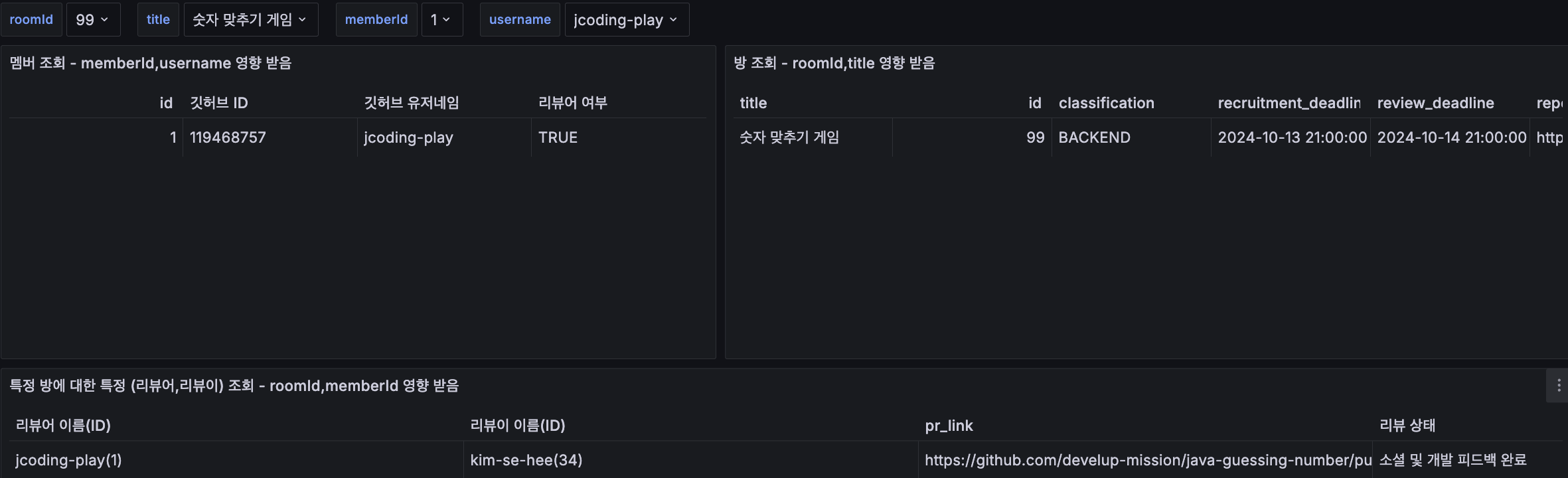
In this way, you can also create a data dashboard that is easy for frontend developers to view and use.
Conclusion
All settings are now complete. To briefly explain again:
- Register Server Instance, DB Instance in Prometheus settings.
- Spring server installs & exposes Prometheus.
- DB server installs MySQL Exporter.
- Spring server sends logs to Loki via HTTP API.
- Grafana connects Prometheus & Loki data sources for visualization.
Using PromQL in Prometheus and LogQL in Loki allows you to display data on the dashboard as desired, but I don’t think I’ll study that part. (The learning curve is too high, and the default provided is sufficient.)
I don’t know when it will be (the mission is too busy…) The next content will probably cover setting up alerts through monitoring. (Slow queries, server overload & error rates, etc.)
References
[Wooteco 6th Level 3] Grafana, Loki, Prometheus - Log and Metric Monitoring [Assignment] Building MySQL monitoring using prometheus and grafana